

Several years back (and an update just over four years ago) we went through Samsung’s data migration software and Magician, and gave an in-depth overview of how to use it and its features. Over the years Samsung has made several upgrades and changes to Magician and we will go over them here. We’re going to start off with a brief overview and the software’s basic functions before jumping into the new functionality in Samsung Magician 6.
Samsung Magician is a Windows application that enables users to do simple tasks such as updating SSD firmware; but there are also features that simplify many SSD management tasks, like changing SSD overprovisioning. All this is done through a GUI that is intuitive and easy to use, no command line needed.
With Samsung Magician 6, there are handful of new features to let users get the most out of the company’s SSDs. First up, and the easiest to spot, is a completely new GUI. It looks nice, with a dark theme that many users are wanting at this time, and it has been revamped to be even easier to use. Version 6 has a PSID revert function to initialize the drive without visiting the service center. And there is now a diagnostic scan that gives users a detailed state of their drive.
For those that would rather, we have a nifty video walkthrough:
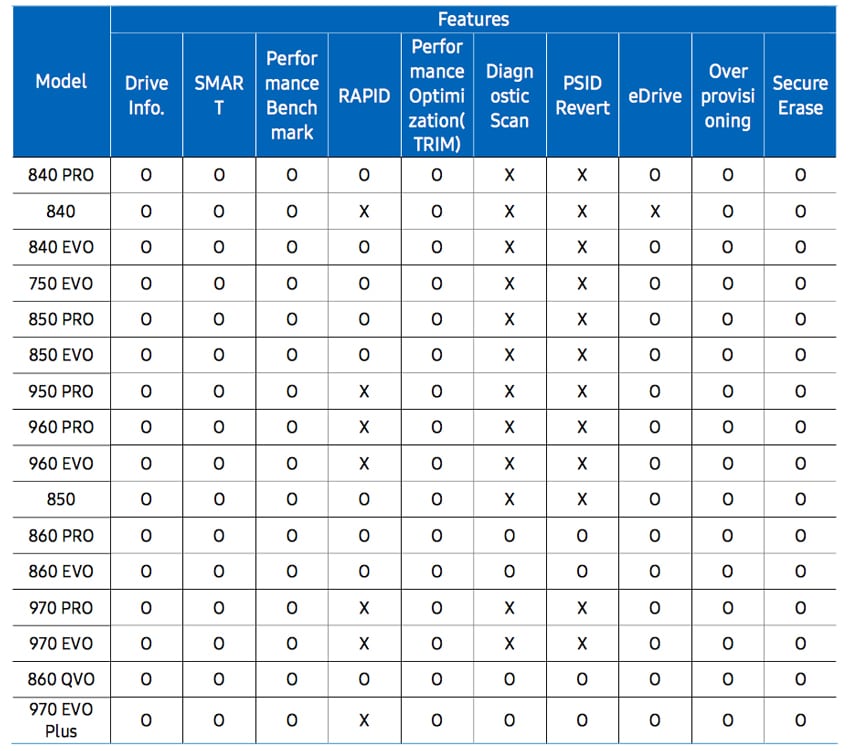
Not all features of Magician work on every drive that Samsung has however. Samsung has a very large selection of drives they’ve released over the years and they are not all going to work with all of the features in Magician 6. Samsung has provided the useful chart below so you know what you can do with what you have.
Usability
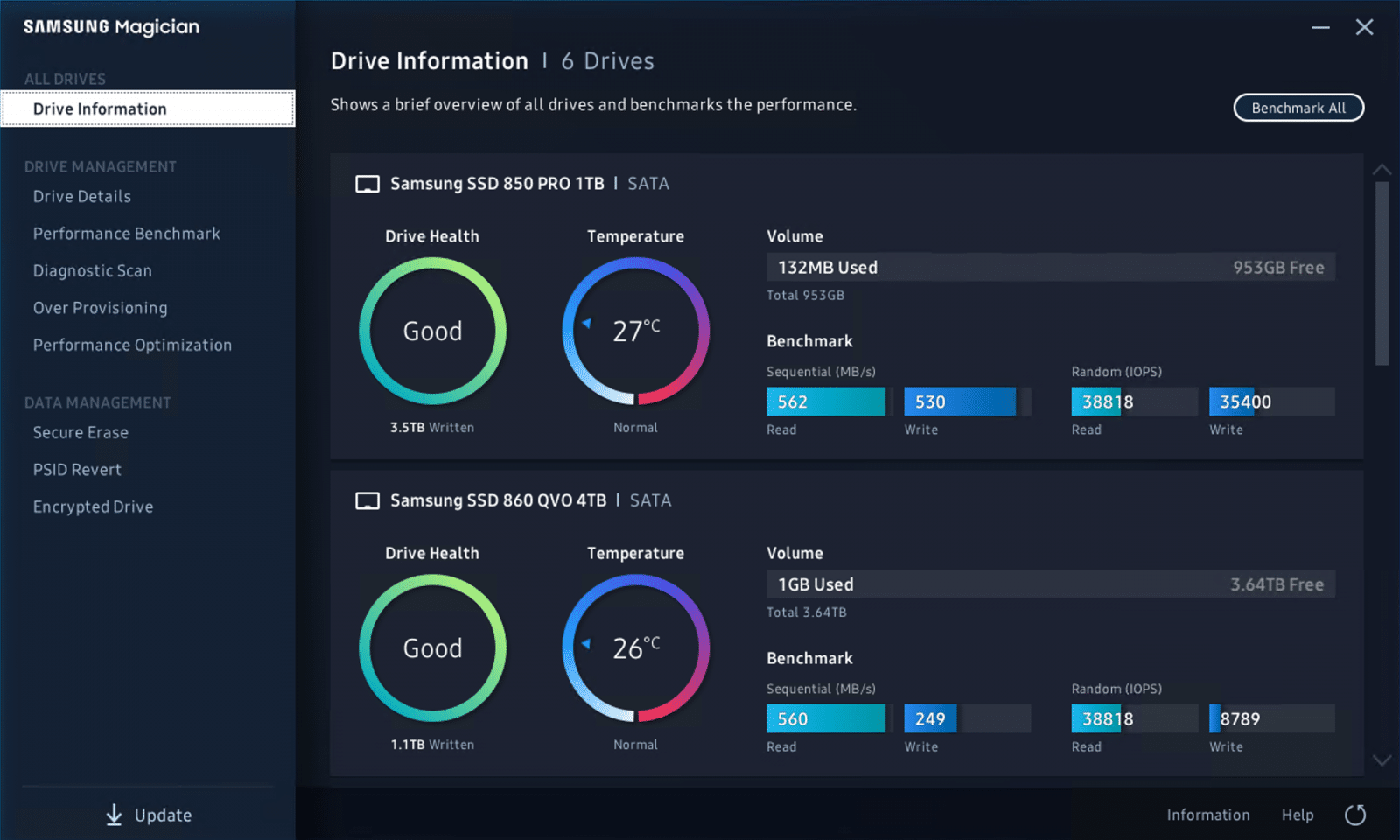
Now that we know what it is, let’s see what Magician can do. First up is Drive Information. We have multiple drives in this particular system that can be seen below. From this screen, users can see the drive health along with the TB written, temperature and whether it is normal, along with the volume used and free. There are also benchmark results that we’ll get into here in a bit.
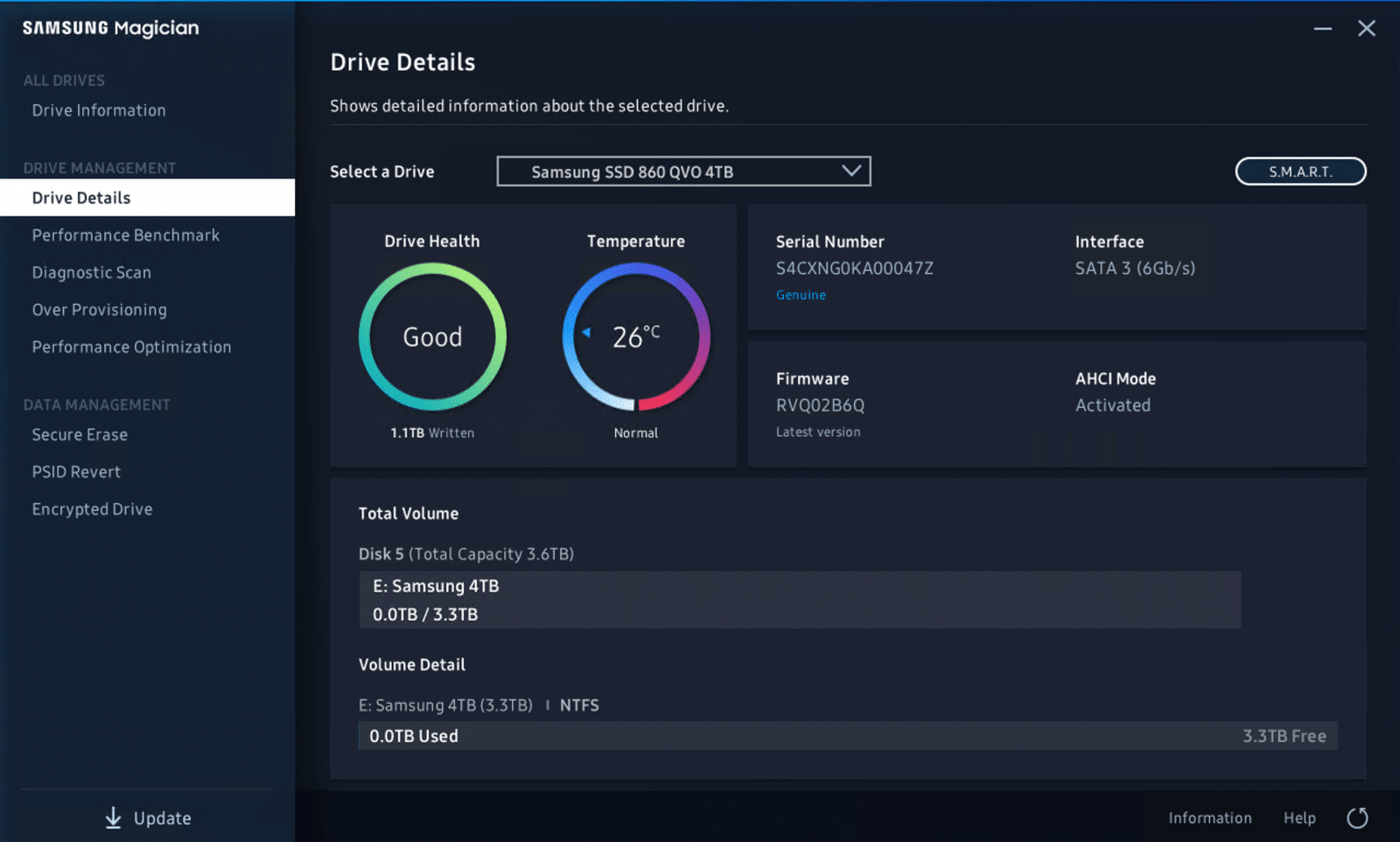
Next up is Drive Details. Here, we dive deeper into information on the drive. The same info as the above is presented along with serial number, interface, firmware version, and whether or not AHCI mode is activated. There is also more information on Volume, going into a bit more detail. If there were a firmware update, as seen in the video, an alert for such would be found on this screen.
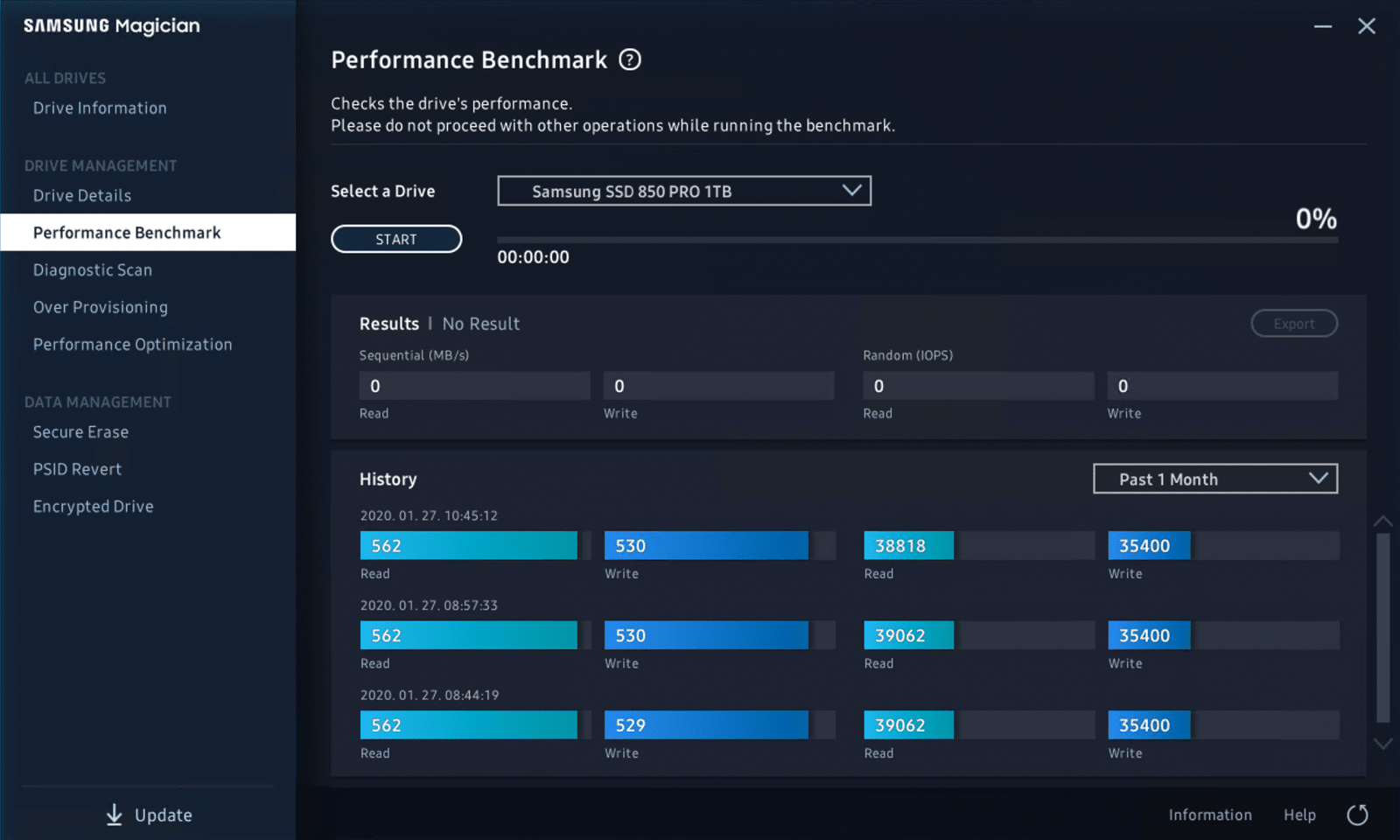
As promised, next we look at the performance benchmark. This allows users to know that their drive is currently running at and they can check on previous performance as well. The results can be seen here as well as on the Drive Information tab above.
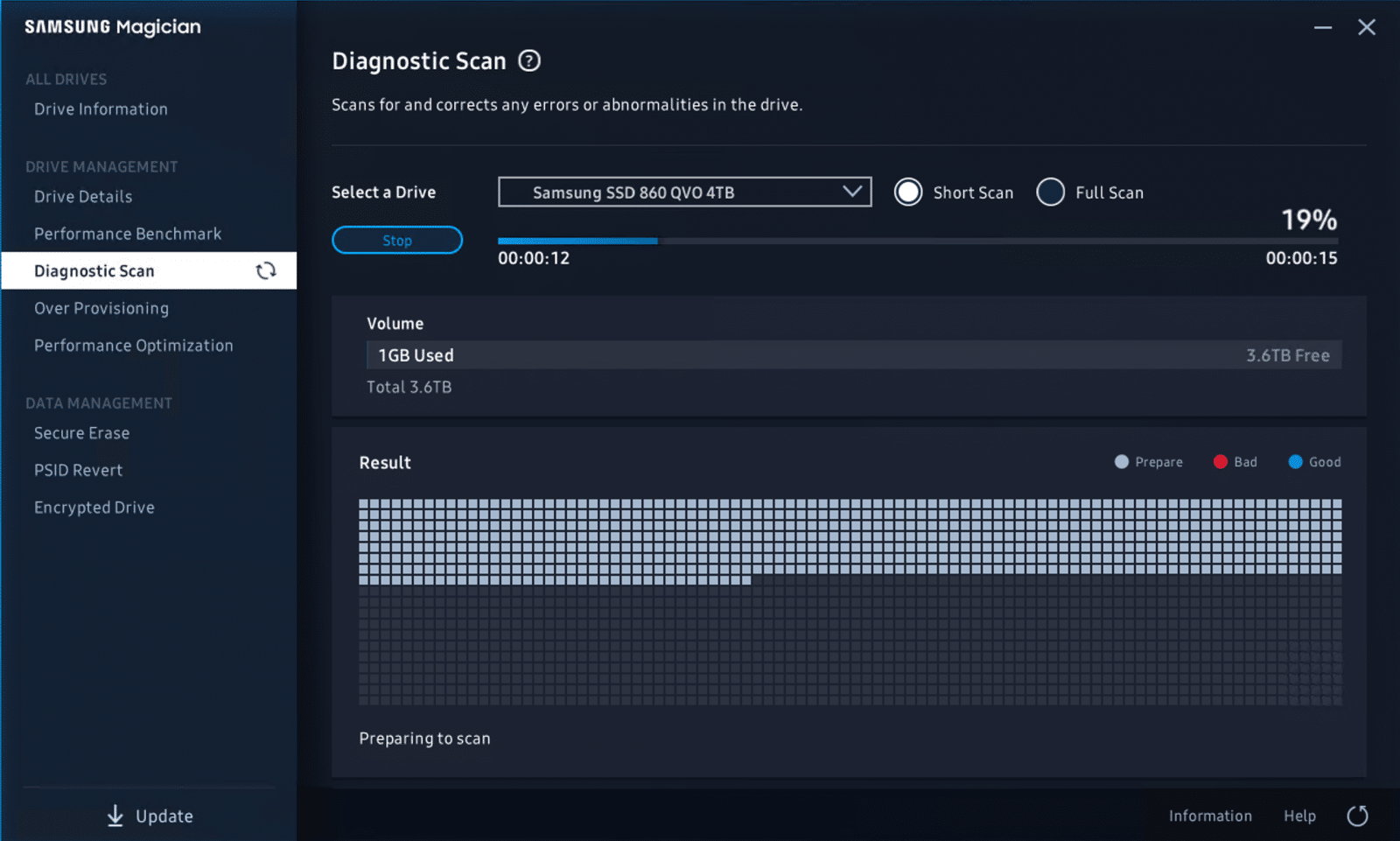
A new feature with version 6 is Diagnostic Scan. Users can do a short or a full scan and see if there are any errors. Once an error is detected it can be corrected depending on the severity of the error.
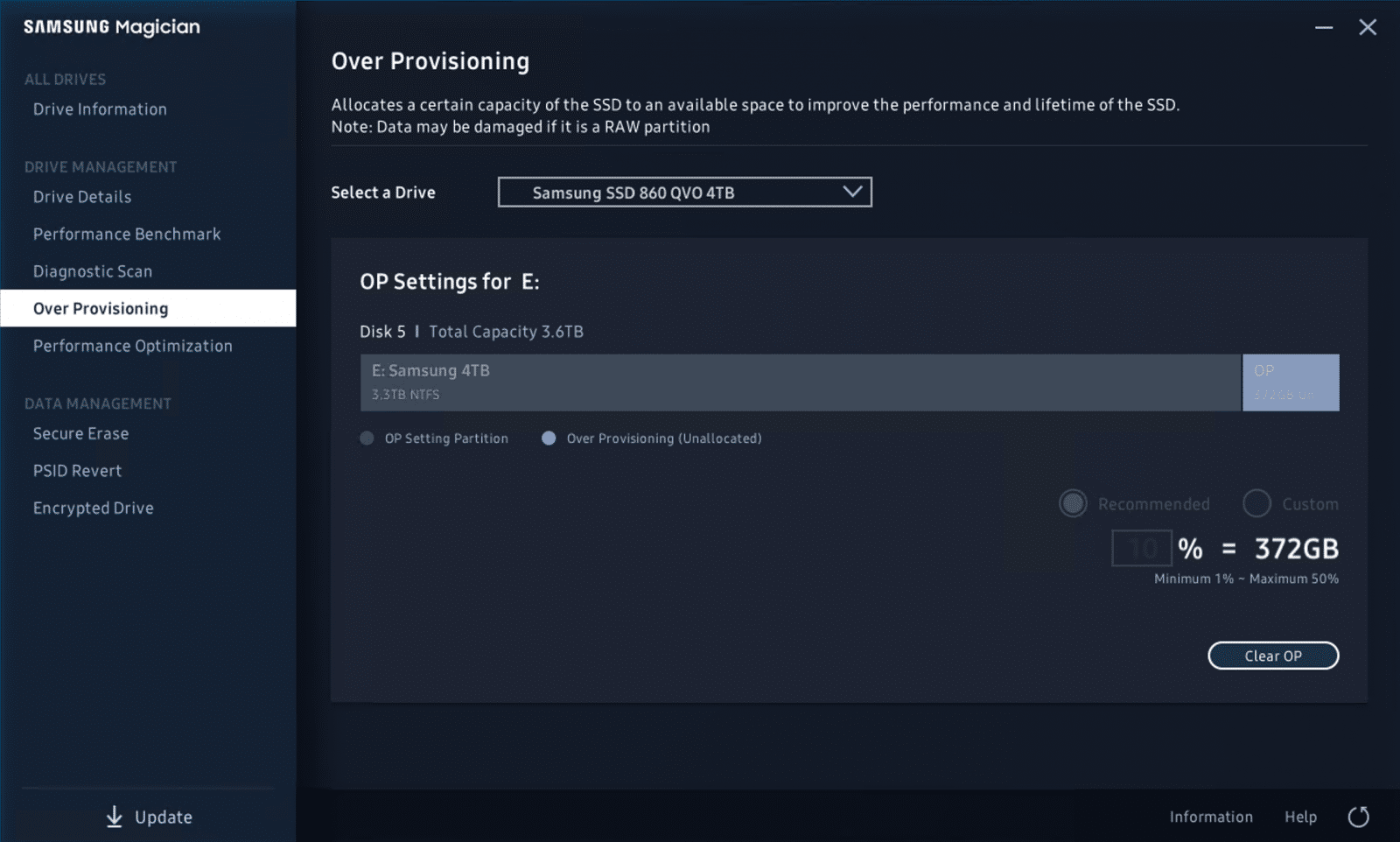
There is an Over Provisioning tab for those that want to improve the performance/endurance of their drive. Samsung recommends 10% by default, but the user can enter any value they like up to 50% of the drive’s capacity.
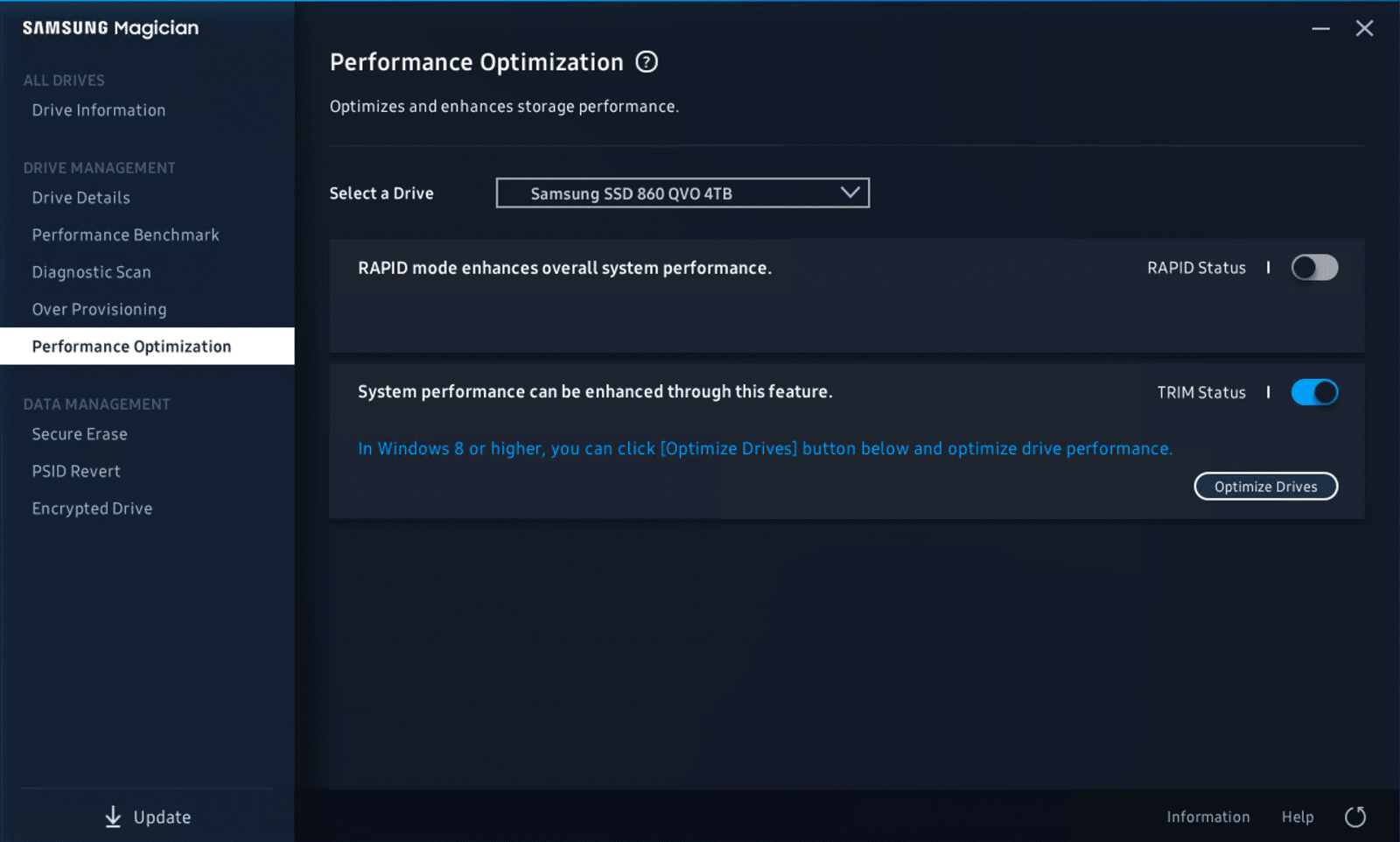
For those that want to optimize their performance but don’t want to take the over provisioning route, can go to the next tab, Performance Optimization. This tab allows users to simply turn on RAPID mode and TRIM scheduling (via Windows) with a few clicks.
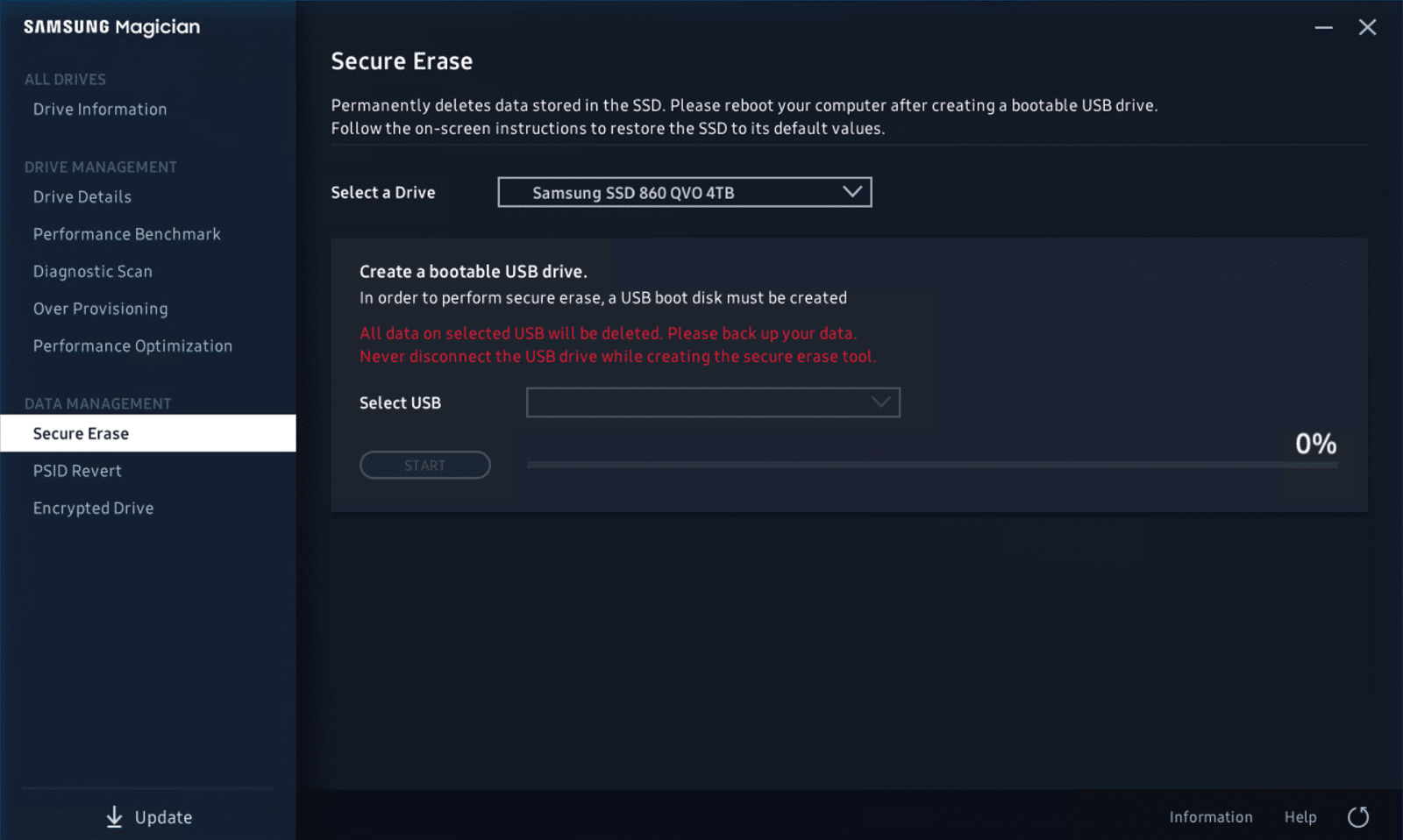
Once one is finished with their drive and wants to sell it or make sure that important information is permanently gone, they can use the Secure Erase feature.
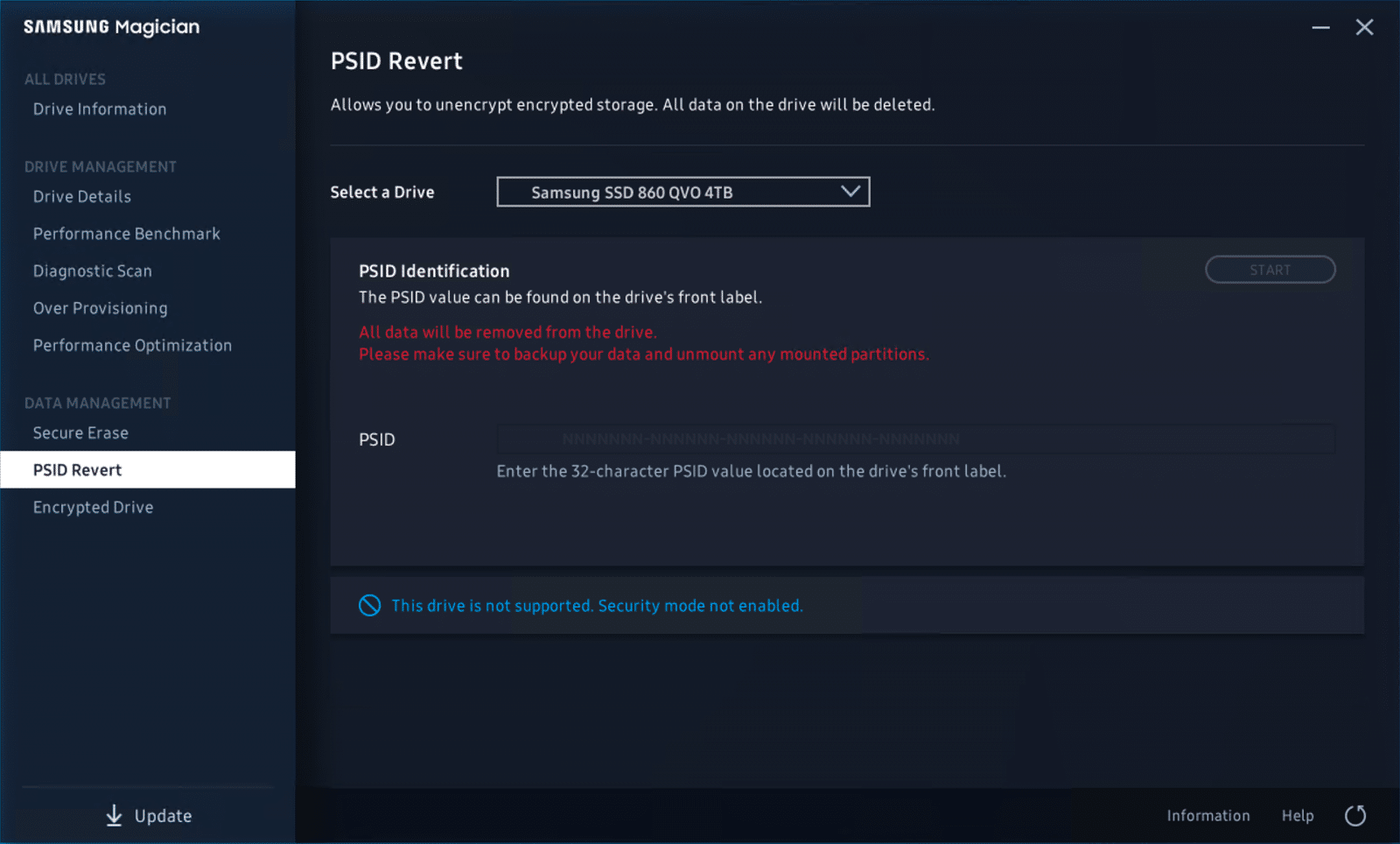
PSID Revert is a new feature designed to handle errors that sometimes occur like drive locking. It should be kept in mind that leveraging this feature will delete all data that is currently on the drive.
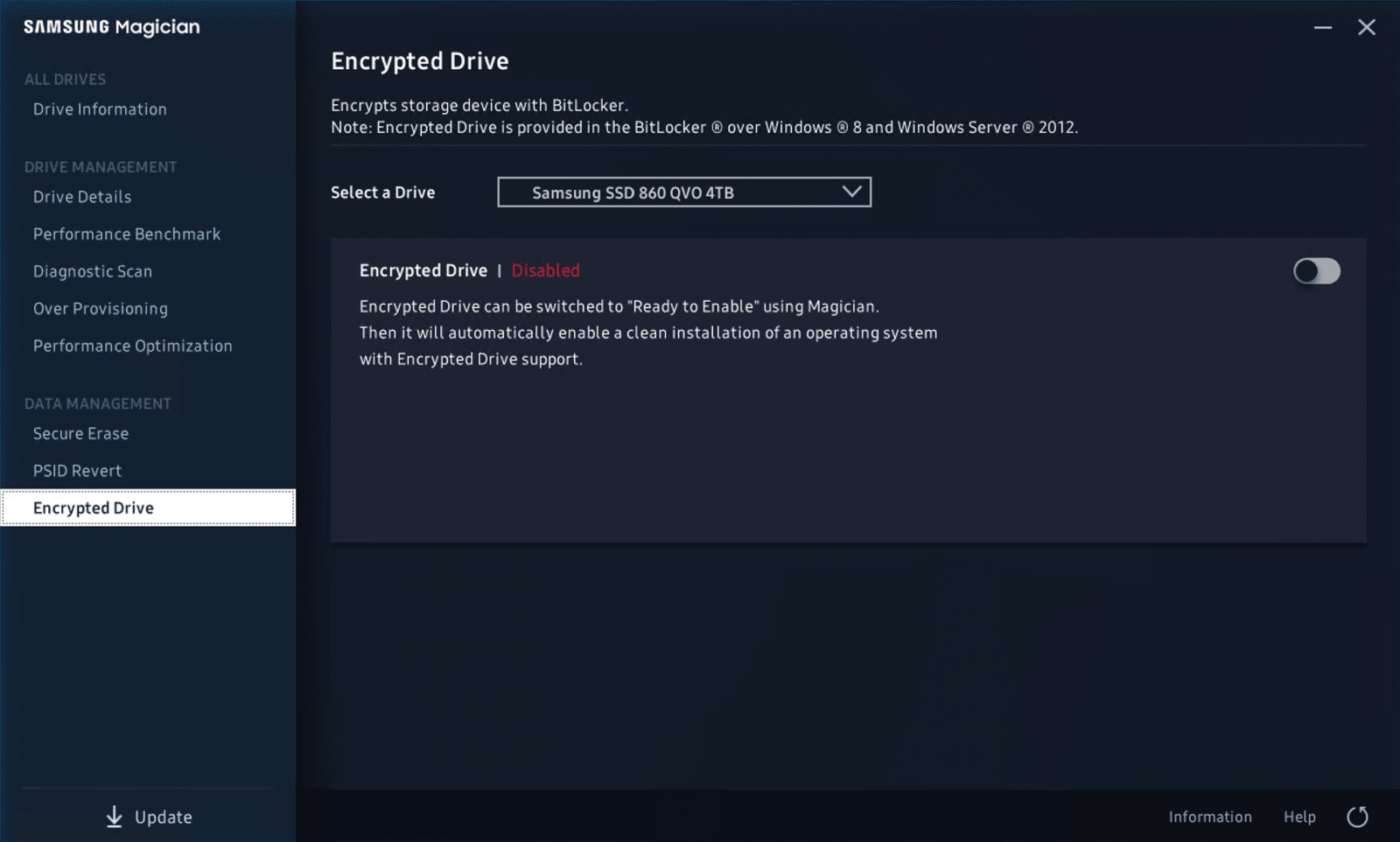
If one needs to encrypt a drive, the next tab, Encrypted Drive, does just that. Leveraging BitLocker, this feature in Magician automatically enables a clean installation of an OS with encrypted drive support.
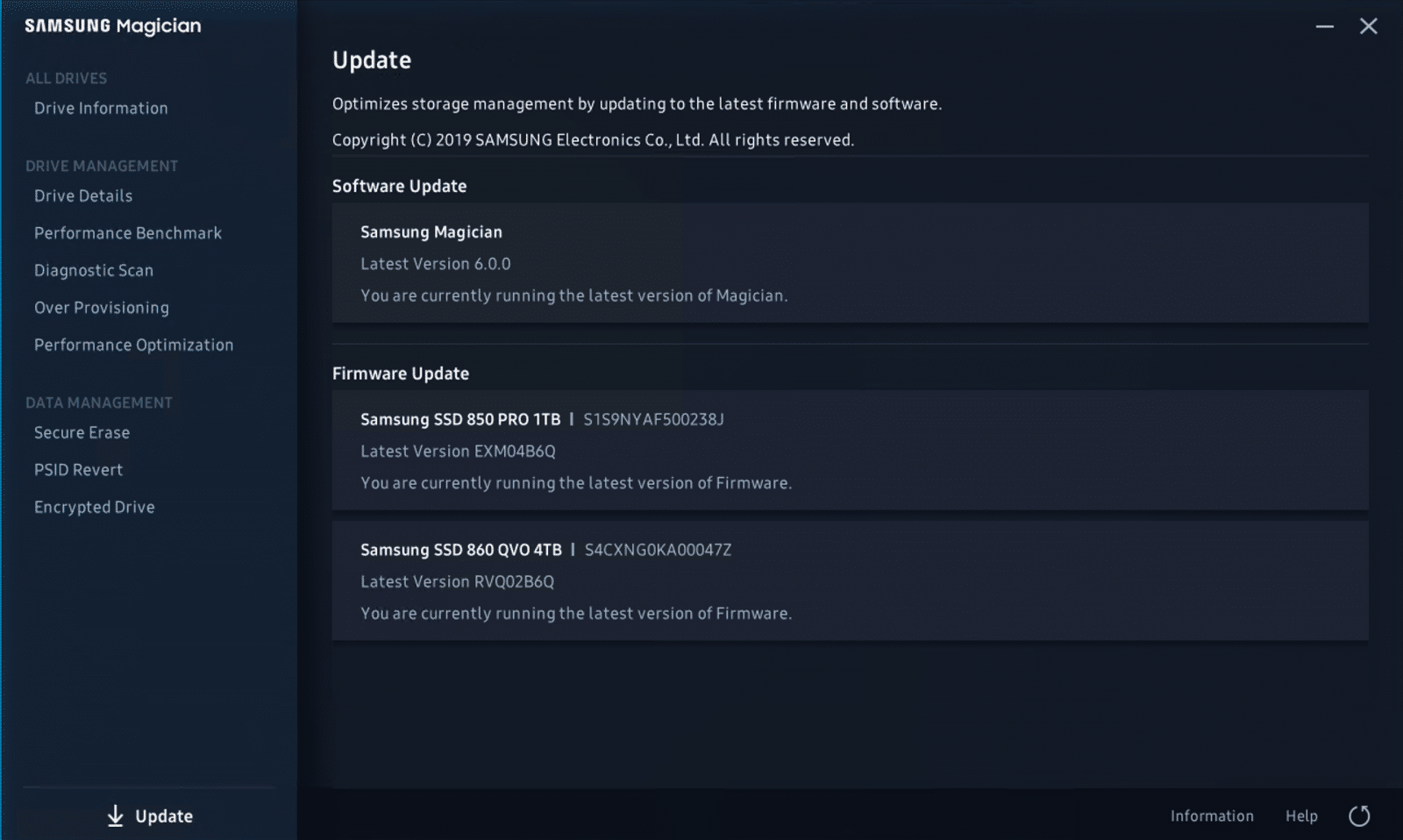
And finally, at the bottom left is the Update button that can update all the drives to the latest version of firmware. Again, in the video both drives needed a firmware update, and that was indicated on this screen.
The latest version of Samsung Magician is comprehensive and easy to use, not to mention free. For those that are looking to get a little more out or their Samsung SSDs, or just want to know what is going on with them, download the software and check it out. The install is simple, the GUI is intuitive and it’s easy to manage multiple drives if your system is so fortunate. Compared to what other vendors offer, Samsung Magician is clearly at the top, providing a suite of tools that add value every step of the way.


 Amazon