

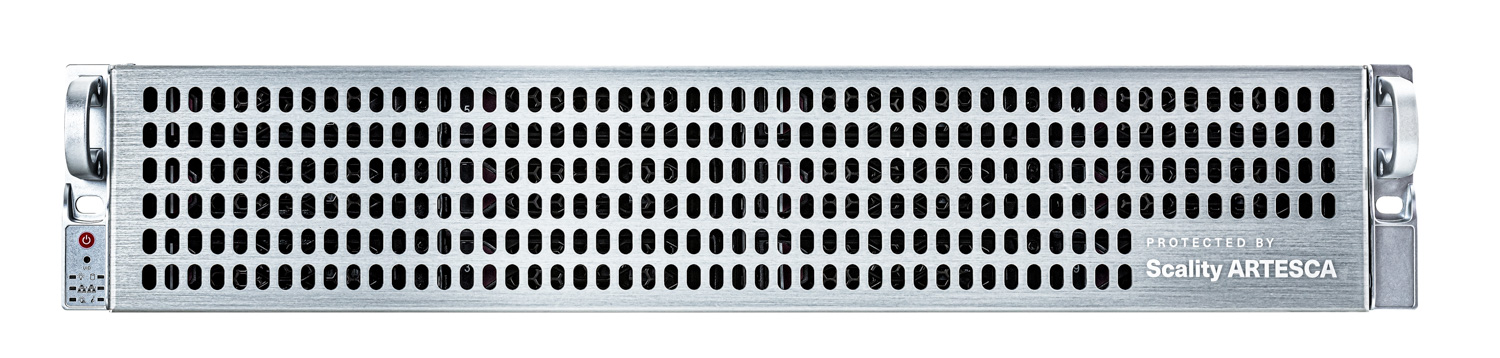
ARTESCA+ Veeam is what happens when backup software and backup storage stop acting like separate products and move into the same house. At a high level, it is a unified software appliance that runs Veeam Backup & Replication inside Scality ARTESCA on a single server. Instead of setting up a Windows server for Veeam, a separate S3 target, and the glue between them, customers can deploy a single system that integrates the Veeam control plane and the S3 repository into a single stack. According to Scality and Veeam, this single-host design eliminates the need for separate physical or virtual infrastructure for Veeam. It can reduce deployment complexity, time, and infrastructure costs by up to 30% compared to traditional multi-tier designs.
Key Takeaways
- Unified stack, smaller surface: Veeam and S3 run inside ARTESCA, internal traffic only, no external DNS, keys stay on box.
- Set up in minutes: Assistant creates account and bucket, enables Object Lock and versioning, sets SOSAPI, hands off endpoints and creds.
- Right-sized capacity: 20 to 440 TB usable on standard x86 from HPE, Dell, Lenovo, or Supermicro.
- Resilience by default: CORE5 controls, IAM and optional MFA, Grafana visibility for day 2.
How the Unified Appliance Comes Together
If you haven’t followed object storage recently, it’s worth considering who is behind ARTESCA. Scality has been building scale-out file and object storage since 2009, most notably through its RING platform, which underpins large on-premises object stores in service provider and enterprise environments. The company has appeared in Gartner Magic Quadrant reports for file and object storage for years, was named a leader in the 2023 Magic Quadrant for Distributed File Systems and Object Storage, and was later recognized as a visionary in the 2024 Magic Quadrant for File and Object Storage Platforms.
For a mid-sized IT team considering a relatively new product like ARTESCA, a proven track record is an essential indicator that the product is enterprise-grade storage from a reputable vendor, not a side project from an unknown startup. ARTESCA is Scality’s on-premises, cyber-resilient S3 object store, explicitly positioned as “storage built for backup.” Rather than chasing every possible object use case, ARTESCA focuses on backup and archive workloads, emphasizing immutability, operational simplicity, and the ability to scale from tens of terabytes to multi-petabyte environments without changing how it is managed.
The current generation introduced Scality’s CORE5 cyber resilience framework, which layers protections from the API and identity planes down through the data path and the cluster architecture, ensuring backup data is protected against encryption, deletion, and insider abuse, and not just accidental loss.
By design, ARTESCA+ Veeam keeps the S3 path off the network. The S3 service is bound to internal interfaces; there is no external DNS entry, and the access keys Veeam uses remain inside the appliance. Communication between Veeam and the S3 buckets occurs on the appliance’s internal fabric, reducing exposure and simplifying auditing. There are additional cost and performance benefits: fewer Ethernet ports are required and your backup window doesn’t overload your network with extra traffic. If an external endpoint is ever needed, it is an explicit, opt-in change that an administrator must enable and document, with new credentials issued for that purpose. In other words, the default posture is internal-only, and external access happens only by deliberate choice.
Veeam writes to ARTESCA buckets configured with versioning and S3 Object Lock, making backups immutable upon landing. At the same time, ARTESCA provides erasure-coded durability and policy-driven retention on the back end. The result is that your backup repository—the last line of defense for your data—is part of a system designed to assume a breach has occurred. This setup reduces the attack surface and makes it extremely difficult for ransomware or insider threats to encrypt or delete your recovery copies.
Usability is another important aspect of the overall story. ARTESCA was designed for deployment and operation by the same teams that currently manage Veeam, without requiring them to become specialists in S3 or Linux. On first login, the appliance presents a partner application screen where you choose your backup software. Selecting Veeam opens a built-in assistant that asks a few focused questions rather than dropping you into a blank S3 console. It creates the ARTESCA account that will own the Veeam resources, sets up one or more buckets, enables versioning and Object Lock, sets logical capacity limits for reporting through Veeam’s Smart Object Storage API (SOSAPI), and then generates the endpoint and credentials Veeam needs.
In practice, what typically requires an hour of back-and-forth between the backup and storage teams is streamlined. This guided flow allows for the creation of a functional, immutable repository in just a few minutes. Additionally, it provides a unified view of storage health and capacity, accessible through the ARTESCA user interface and the Veeam console.
From a business perspective, the combination of heritage, security, and simplicity makes ARTESCA+ Veeam interesting. Scality is focusing on environments requiring 20-440 TB of usable storage for its unified appliance. This offering is designed for branch offices, edge locations, and mid-sized data centers that have outgrown traditional scale-up backup appliances but are not inclined to create their own object storage platform.
For those teams, a software-defined appliance that integrates Veeam and S3 storage on a validated x86 server—optimized for Veeam’s default block size of 1 MB—enables modernization of backup infrastructure. This solution is supported by documented reference architectures that demonstrate up to 5.5 TB/h of backup throughput and 4 TB/h of restore throughput on a single-node reference, enabling teams to enhance their backup capabilities without embarking on a full-scale object storage project.
For this report, Scality shipped us a preconfigured ARTESCA+ Veeam system so we could begin testing immediately. The hardware layout and initial configuration were explicitly assembled for our proof-of-concept work and should not be read as a reference SKU. In production, ARTESCA and ARTESCA+ Veeam are provided as software appliances that customers and channel partners can license and deploy on their preferred, validated x86 platforms from vendors such as HPE, Dell, Lenovo, and Supermicro. They can also integrate these solutions into their own appliance offerings or managed services. That model preserves the flexibility to standardize on familiar hardware or add value around the appliance while still leveraging the unified software stack we are evaluating here.
Touring the UI
Like many backup and storage platforms, the ARTESCA+ Veeam unified software appliance comes with a user-friendly web interface. After completing the installation and upon logging in, we arrive at the “Overview” page, which provides a summary of our configuration. The preparation to reach this point is typically the work of a channel partner, but the end customer can also drive this step. All the main points are concise and easy to understand, including storage footprint, active data services, and storage usage percentage.

The “Identity” page allows administrators to manage built-in users and groups and configure their permissions with ease. Integration with LDAP directory servers is also possible, with preconfigured options for Microsoft Active Directory, Red Hat Directory, Tivoli Directory, and eDirectory. Multi-factor authentication can also be enabled globally or for specific users.


The “Platform” page provides insights into the server you have chosen to run the ARTESCA+ Veeam unified software appliance on, with service statuses on the “Dashboard” tab, a few activity charts, and a button labeled “Advanced Metrics.” Clicking this button opens the appliance’s built-in Grafana monitoring dashboard, displaying statistics on the server’s resource usage and activity. This is especially useful for organizations looking to collect data on backup performance, network bandwidth usage, and reliability, and it requires no additional installation or configuration during setup.

We’ve worked extensively with Grafana dashboards for storage products over the years. One of the more interesting aspects here is that this service also runs on the appliance itself. We are used to vendors discussing Grafana dashboards that can be integrated into existing environments. ARTESCA goes a step further by providing a working, deployed instance for customers to use. This is a really nice touch for monitoring services.

The “Nodes” tab allows you to configure additional ARTESCA+ nodes for redundancy, supporting architectures with 1, 3, or 6 nodes. It’s worth noting that the ARTESCA+ Veeam solution is currently single-node; we highlight ARTESCA’s broader functionality for reference. The “Volumes” tab enables administrators to create, modify, or delete volumes on connected nodes.

After installation, the volumes required to operate the ARTESCA+ Veeam unified software appliance are visible.

The “Storage Services” page is where the ARTESCA+ cluster and the individual data drives of the nodes can be managed. Selecting the “Expand Cluster” button allows you to add or remove nodes. When you choose a node, all data drives are displayed. Faulty drives can be safely removed and replaced by clicking the “Unmount Faulty Disk” button. Additionally, you can add more drives by clicking the “Mount X New Disk” button, where X represents the number of unused drives connected to the node. Similar to the “Dashboard” tab on the “Platform” page, the “Advanced Metrics” button opens Grafana and displays detailed statistics for the selected node’s data drives.


Next up is the “Data Management” page. This view presents tabs labeled “Accounts,” “Data Browser,” “Workflows,” “Locations,” and “Data Services.” Each tab controls vital functions necessary for the ARTESCA+ Veeam unified software appliance to operate.
If you have used Microsoft’s Azure cloud platform for storing data, you likely already understand storage “Accounts.” Accounts are namespaces that contain one or more buckets, which are repositories for data objects such as virtual machine backups. The contents of these buckets can be viewed by clicking the “Data Browser” tab and selecting the associated bucket. Buckets can be created, emptied, deleted, and have their capacities modified using that tab. On the “Workflows” tab, automated replication, expiration, and transition (moving a bucket’s contents to another location, often used for archiving) actions can be configured.

The “Locations” tab is where you can add additional internal or external repositories, including Amazon S3, Google Cloud Storage, Microsoft Azure Blob Storage, and more. Connected locations are listed on the page, and new ones can be added using the “Create Location” button on the right.

“Data Services” displays the internal S3 endpoints used by the built-in Veeam instance. While other ARTESCA deployment options expose S3 endpoints through this tab, the ARTESCA+ Veeam unified software appliance does not support creating additional data services, ensuring the highest level of security.
The last configuration item on the management interface is the “Alerts” page. Here, current and past alerts are logged, including those related to operating system upgrades, drives, services, nodes, and volume/file system space warnings. Optionally, alerts can also be configured to be sent via email using the “Email notification configuration” button and accompanying wizard.

With its intuitive UI, the ARTESCA+ Veeam unified software appliance can be easily configured to meet the backup and archival needs of businesses and organizations across diverse industries, and is further enhanced by Veeam’s ever-expanding compatibility.
ARTESCA+ Veeam
The front end of the ARTESCA+ Veeam unified software appliance is the built-in Veeam instance. Running on KubeVirt, the Windows Server-based virtual machine equipped with Veeam Backup & Replication supports backing up virtual machines from various hypervisors. These include Proxmox VE, Microsoft Hyper-V, VMware vSphere (ESXi/vCenter), Nutanix AHV, Oracle Linux Virtualization Manager, and many others. As many customers move away from VMware-based virtualization solutions, Veeam plans to support additional popular hypervisors soon, including XCP-NG, HPE Morpheus VM Essentials, Citrix XenServer, and Red Hat OpenShift Virtualization. Take a look at the latest news on Veeam Data Platform v13.
The Advantages of a Unified Software Appliance
Having Veeam on board enhances the performance, efficiency, and security of Scality’s software appliance. Data transfer between Veeam and the S3 storage repository, facilitated by ARTESCA+, occurs internally via virtualized networking. This approach eliminates the need to duplicate external network traffic from hypervisors and data sources to Veeam and then back to the storage repository. This also eliminates the need to expose the S3 bucket to the rest of the network, reducing the solution’s attack surface.
To set up the S3 bucket used by the built-in Veeam virtual machine, connect to the ARTESCA+ web GUI and navigate to the “Accounts” tab on the “Data Management” page. Next, click the “Start Veeam VBR Assistant” button, which will display a wizard to configure a storage account and bucket.

In our lab, the built-in Veeam Assistant delivered a working, immutable repository in minutes. The wizard created the ARTESCA account, enabled versioning and Object Lock on the bucket, set SOSAPI capacity reporting, and handed us the endpoint, region, and keys Veeam needed. Because Veeam and the S3 service communicate internally, there was nothing to expose on the network and no DNS configuration required, eliminating the usual back-and-forth between the storage and backup teams. The flow is straightforward for IT generalists and, in our experience, felt effectively foolproof while still leaving advanced controls available.

After the software appliance’s initial setup is complete, the Windows Server instance running Veeam Backup & Replication is available to log into via Remote Desktop Protocol (RDP) or VNC. Veeam must then be connected to the ARTESCA+ S3 storage bucket using the “Backup Repositories” tab on the “Backup Infrastructure” page. Right-click the tab, then select “Add backup repository” to add the previously created S3 bucket.


Select “Object storage” from the list of backup repository types, then choose “S3 Compatible” on the following two pages. After doing so, you will be presented with another wizard, where the connection details of the S3 bucket you have created must be entered. The “Service Point” is located on the “Data Services” tab of the “Data Management” page in the ARTESCA+ web GUI (ours was “s3.artesca-plus-veeam.local”). Enter the region (found in the “Locations” tab) and credentials, select the bucket and folder created earlier, and configure the “Mount server” to be the ARTESCA+ Veeam unified software appliance’s built-in Veeam server. You can also set additional details here, such as an object limit and whether to enable near-instant recovery with the vPower NFS service.

Veeam is now ready to connect to a data source or hypervisor to begin backups.
ARTESCA+ Veeam and Proxmox VE
To test the ARTESCA+ Veeam unified software appliance, we connected the review unit to our Proxmox VE (PVE) server. Getting virtual machines backed up is completed in three easy steps:
- Connecting the PVE cluster to Veeam
- Adding a worker virtual machine
- Creating a backup job
We’ll give an overview of the steps to get started with Veeam, but a more detailed guide is available here: Veeam Plug-in for Proxmox VE 3 User Guide. To connect Veeam to PVE using the Backup & Replication console, enter the “Inventory” view, and select the “Add server” option after right-clicking the “Virtual Infrastructure” list item.

When the “Add Server” menu appears, follow the wizard’s instructions to connect a Proxmox VE instance. It will request the server IP address or hostname and credentials, so make sure you have the information for your cluster ready.

After connecting the PVE, a worker virtual machine (VM) is required to facilitate data transfers between the Proxmox VE server and Veeam. Right-click “Backup Proxies” in the “Backup Infrastructure” view, and select “Add proxy” from the drop-down menu that appears.

Add a worker using the “Proxmox VE worker” wizard from the pop-up menu, then select your desired host, CPU, memory, and network settings. Name it accordingly (we used ‘artesca-worker’) and finish the wizard.

Finally, we’ll need to create a backup job to start backing up the virtual machines on Proxmox VE. On the “Home” view in Veeam Backup & Replication, click the “Jobs” item, then the “Backup” item under it. Right-click “Backup,” hover over “Backup” in the drop-down menu, and select “Virtual machine.”

A menu will then appear, allowing you to select the backup job parameters. Ensure you include all virtual machines you wish to back up by using the “Add” button in the “Virtual Machines” step. Also, ensure you select the ARTESCA+ S3 storage bucket as the backup repository for the job. After you finish, the backup job will run according to your schedule.


Once you have configured Veeam to back up and store your hypervisors and data sources, the ARTESCA+ Veeam unified software appliance will run reliably in the background, protecting your organization’s information and providing peace of mind.
The Future of Scality and Veeam
Scality provided a preview of the next major version of ARTESCA+ and promised greater simplicity, better integration, and more automation for setting up the onboard Veeam virtual machine. They also intend to add support for deploying the Veeam Software Appliance (built on Linux) and many improvements to multi-node and high-availability features. The update will reduce the solution’s total deployment time and eliminate several setup steps covered in this article. Additionally, while this paper was written for Veeam B&R V12, organizations using V13 will notice improved overall object storage performance and efficiency, and gain the platform’s latest protection and security features.
Conclusion
ARTESCA+ Veeam does exactly what Scality says it will do. In our lab, the unified software appliance eliminated the guesswork between backup and storage by keeping the S3 path internal, enabling versioning and Object Lock by default, and guiding setup through a short assistant that an IT generalist can run without handholding. The result is a working, immutable repository in minutes with few moving parts to maintain.
Security posture is practical rather than performative. Internal-only endpoints, no external DNS, credential isolation, IAM, and optional MFA reduce exposure while keeping day-to-day administration familiar. Monitoring in Grafana provides clear visibility across services, nodes, and disks, making it easier to verify that backups are running as intended and to spot issues before they become outages.
From a business standpoint, the value lies in time-to-protection and lower operational overhead. Teams get Veeam and an S3 target in a single stack on standard x86, keeping hardware choice flexible and avoiding lock-in. Scality positions this unified appliance for roughly 20 to 440 TB of usable capacity, which aligns with branch, edge, and mid-market sites that have outgrown a scale-up target but do not want to stand up a separate object platform.
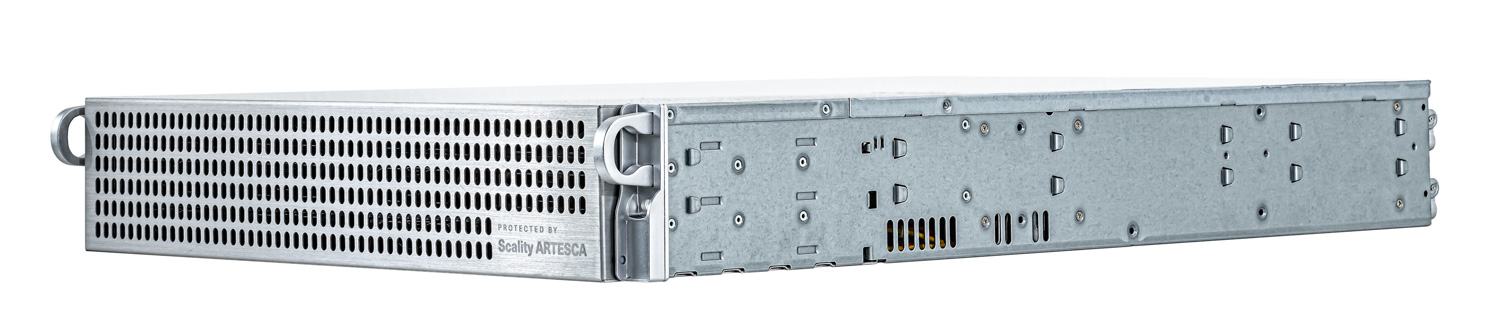
There are a few guardrails to be cognizant of. The unified appliance is a single node. If you need greater resilience or higher capacity, deploy ARTESCA as a multi-node cluster and keep Veeam as the control plane. External S3 exposure is available, but it is an opt-in change that should be documented and managed with separate credentials.
On balance, this is a mature approach, backed by Scality’s long track record and a team with decades of enterprise storage experience, that pairs sensible defaults, strong immutability, and straightforward operations.
This report is sponsored by Scality. All views and opinions expressed in this report are based on our unbiased view of the product(s) under consideration.



 Amazon